 hubusbc
SEARCH
Search Product
Search Post
— 葡萄酒 | 威士忌 | 白兰地 | 啤酒 —
— 葡萄酒 | 威士忌 | 白兰地 | 啤酒 —
Docking stations, adapter cables, and hard drive enclosures are our advantageous products at Y-EAYKOOR. We support branded shipments, OEM customization, and can produce products with your customized logo. Our products are sold globally and comply with European and American standards, accompanied by FCC certifications and reports. We welcome customers from all over the world to make purchases.
Modern Macs (MacBook Pro/Air M3/M2/M1) rely on Thunderbolt 4/USB-C ports, while older models may have HDMI, USB-A, or SD card slots. Assess your daily workflow:
Pro Tip: Mac’s video output is limited by chipset: M1/M2 supports 2 external displays, while M3 Pro/Max can drive up to 4.
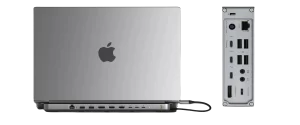
What Is a Docking Station?A docking station is an external device that expands the connectivity of a laptop or tablet, providing additional ports and functions to mimic a desktop workstation. It allows users to connect multiple peripherals (moni...
View details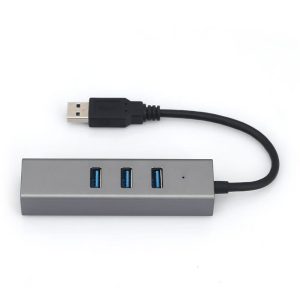
What is a USB-C docking station? Learn how it boosts productivity for MacBook, iPhone 15 & Windows users with HDMI, fast charging & more
View details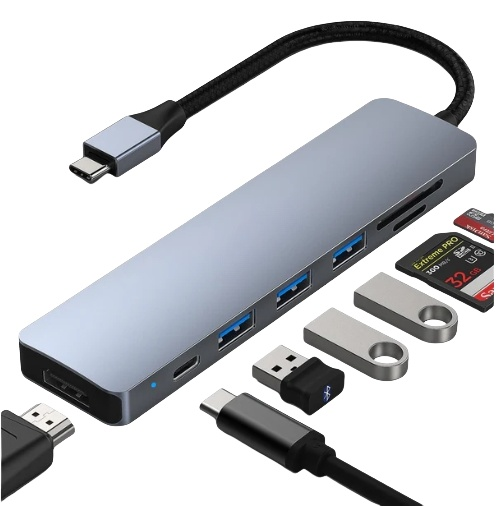
Discover the best docking station for iPhone 14 Pro live streaming! Must-have features include HDMI output, PD fast charging, USB 3.0, and audio ports. Compare top brands like Belkin & UGREEN for a pro setup.
View details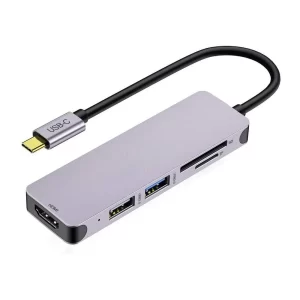
Yierke is seeking professional docking station OEM/ODM manufacturers in Shenzhen and the Pearl River Delta. We require suppliers with expertise in USB4/Thunderbolt 3, HDMI 2.1, and multi-port docking stations. Factories must have SMT lines, ISO ce...
View details